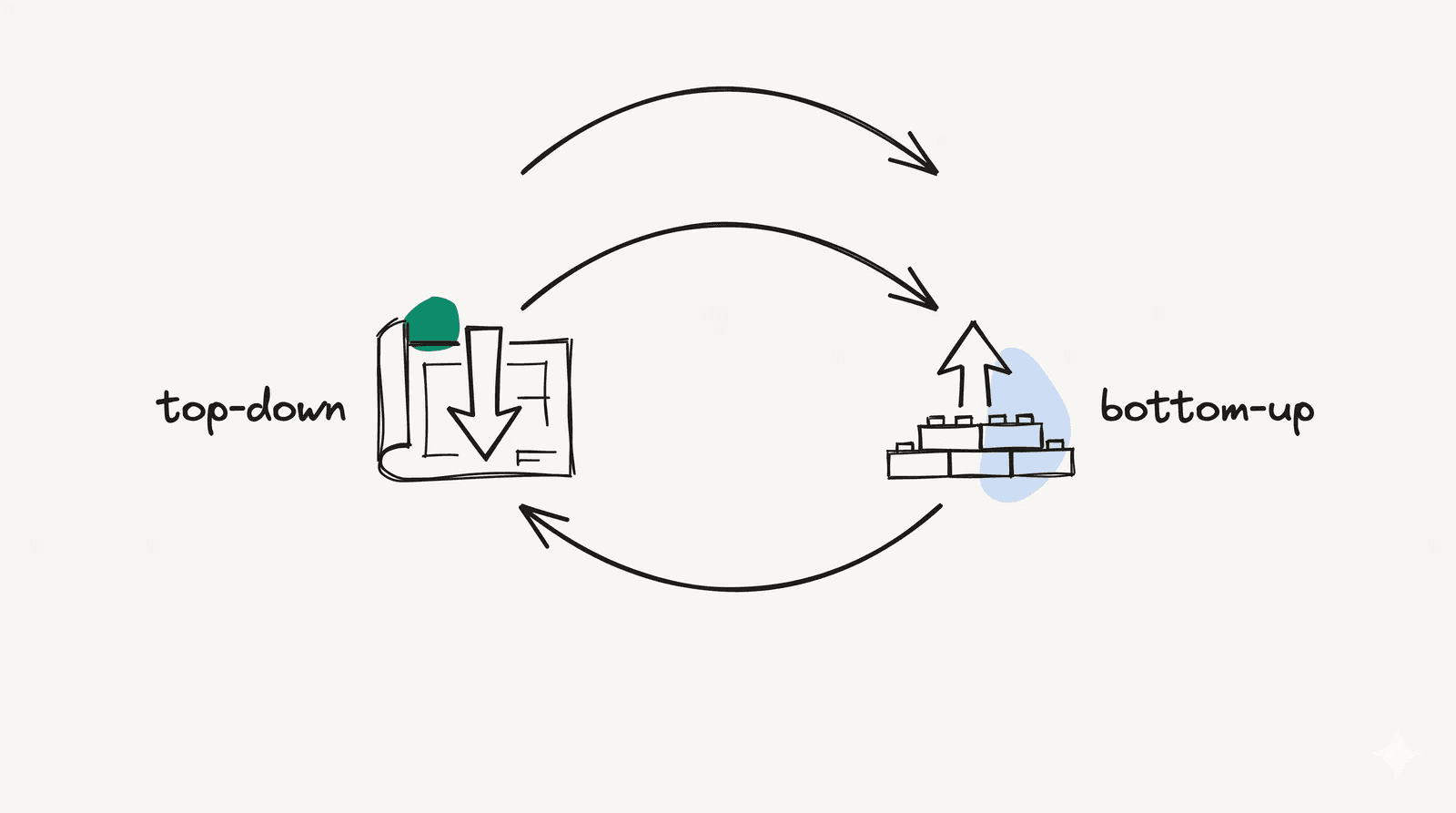
This post is both a demo and the contributor’s manual. Every component below shows its rendered result first, then the exact source you’d write to produce it. If something renders wrong, this page is where you’ll notice — it exercises the whole Markdown pipeline end to end.
Two ways to author rich content live here. Directives (:::name, :name[]) are plain Markdown extensions handled by remark plugins — no import needed. Components (<MdCallout>, <MdDisclosure>, …) are MDX islands you import at the top of a post.
Drop cap
The opening paragraph of this post uses a drop cap — an enlarged, decorative first letter. Wrap any paragraph in the :::drop-cap container directive (no import needed); the styling targets its ::first-letter:
:::drop-capThe first letter of this paragraph becomes a large decorative drop cap,while the rest of the text flows around it as normal.:::Use it sparingly — typically only on a post’s lead paragraph.
Inline text
Standard emphasis works as expected: emphasis, strong, and inline code. Two custom inline directives extend it — :mark[] to highlight a phrase, and :q[]{cite} for an inline quote the best ideas are obvious in hindsight
. Press Ctrl+K to show a keyboard shortcut.
Plain *emphasis*, **strong**, and inline `code`.Highlight with :mark[highlight a phrase].Inline quote with :q[quoted text]{cite="https://example.com"}.Keys with <kbd>Ctrl</kbd>+<kbd>K</kbd>.Links are rewritten automatically: external links open in a new tab with rel set, while internal links stay in place.
Tooltips
Wrap any inline text to attach a hover/focus tooltip — useful for expanding jargon inline. You can hover this term Static Site Generation — pre-renders HTML at build time to see it.
You can <MdTooltip label="Static Site Generation — pre-renders HTML at build time">hover this term</MdTooltip> to see it. Headings and anchors
Every h2–h4 becomes an anchored heading: the heading text itself is the link, a hash icon sits before it, and hovering the row reveals a copy-link button at the trailing edge. The id is slugified from the heading text.
Each heading — and the content beneath it, up to the next heading of equal or higher level — is also wrapped in a labelled <section aria-labelledby="…"> whose label points at that heading’s id. That gives assistive tech a navigable landmark per section, and it’s what the table-of-contents tracks as you scroll.
The three levels render at distinct sizes so the hierarchy is visible:
A level-3 subsection
An h3 renders smaller, with a smaller hash, and nests under the closest h2.
A level-4 sub-subsection
An h4 is the deepest anchored level. Headings below it render as plain text.
## A section### A subsection#### A sub-subsectionThe rendered HTML wraps each heading in its labelled section (simplified):
<section aria-labelledby="a-section"> <h2 id="a-section"><a href="#a-section"># A section</a></h2> <!-- …section content… --></section> Lists
- Unordered item - Nested item1. Ordered item- [x] Completed task- [ ] Pending task- Unordered item
- Nested item
- Ordered item
- Completed task
- Pending task
Callouts
Five semantic variants signal intent. Pass the kind via the type prop.
<MdCallout type="note">A **note** callout.</MdCallout><MdCallout type="tip">A **tip** callout.</MdCallout><MdCallout type="important">An **important** callout.</MdCallout><MdCallout type="caution">A **caution** callout.</MdCallout><MdCallout type="danger">A **danger** callout.</MdCallout> Quotes
A plain blockquote needs no special syntax:
The best code is no code at all. Every line you bring into the world has to be read, understood, and supported.
For an attributed pull-quote, use the figure-quote directive with a cite and a ::caption[]:
The best code is no code at all.
> A plain blockquote.
:::figure-quote{cite="https://example.com/source"}An attributed pull-quote.::caption[— Author Name]:::
Tables
A Markdown table is wrapped by MdTable in a rounded, bordered, horizontally-scrollable container — the cells get a header band, zebra body rows, a hover highlight, and subtle gridlines. Column alignment from the :--- / :--: / ---: syntax is preserved, and a table wider than the column scrolls inside its container instead of overflowing the page.
A basic table:
| Feature | Astro | Next.js ||---------|-------|---------|| Islands | ✅ | ❌ |A left-aligned table with rich cell content (inline code and bold):
Per-column alignment — left (:---), center (:--:), right (---:):
Code blocks
Add a title to label the file; syntax highlighting is theme-aware.
export function greet(name: string) { return `Hello, ${name}!`;}```ts title="src/example.ts"export function greet(name: string) { return `Hello, ${name}!`;}``` Link cards
A rich preview for an external resource:
<MdLinkCard url="https://docs.astro.build" title="Astro Documentation" description="Build content-first websites with Astro."/> Images
A raw Markdown image is wrapped in a <figure>; the title becomes the caption.

For click-to-zoom, <MdImageLightbox> swaps the figure for a thumbnail that opens a full-screen overlay (Esc or backdrop-click closes). It’s a Svelte island — use client:visible so it only hydrates when scrolled into view, and pass width/height so the thumbnail reserves space (no layout shift).
<MdImageLightbox src="https://example.com/photo.jpg" alt="Descriptive alt text" caption="Optional caption shown under the enlarged image." width={1600} height={900} client:visible/> Disclosures
A disclosure is a single collapsible toggle. Use <MdDisclosure title="…"> for one standalone section:
What is a disclosure?
A standalone show/hide toggle for one section of content. A group of these is an Accordion.
<MdDisclosure title="What is a disclosure?">Hidden content goes here.</MdDisclosure> Accordions
An accordion is a group of disclosures presented as one joined unit. Wrap them in <MdAccordion>; add exclusive so opening one panel closes the others — the sibling’s collapse animates too.
<MdAccordion exclusive> <MdDisclosure title="First question">…</MdDisclosure> <MdDisclosure title="Second question">…</MdDisclosure></MdAccordion> Tabs
A tabs group shows mutually exclusive panels behind a tablist. Wrap <MdTab label="…"> panels in <MdTabs>. It’s progressively enhanced — with JavaScript off the panels stack, each headed by its label.
On macOS, press Cmd+Space to open Spotlight.
On Windows, press the Win key to open the Start menu.
On most Linux desktops, press the Super key to open the launcher.
<MdTabs> <MdTab label="macOS">…</MdTab> <MdTab label="Windows">…</MdTab></MdTabs> Code group
A code group is tabs specialised for code — wrap one Expressive Code block per <MdTab>. Give several groups the same syncKey and they switch together: pick bun in one install snippet and every synced group flips to bun (remembered across the page).
bun add @ngockhoi96/sitenpm install @ngockhoi96/sitepnpm add @ngockhoi96/siteA second synced group — switching the one above flips this too:
bun run devnpm run devpnpm dev Video
An embedded video scales responsively at 16:9. Pass the provider’s embed src and a title:
<MdVideo src="https://www.youtube-nocookie.com/embed/ID" title="…" />That’s the full surface. If everything above renders correctly, the Markdown pipeline is healthy — and you have the syntax for every component you’ll need to write a post.